
How to replace one word in suno A sure method
Trying to figure out how to replace one word in Suno can be surprisingly frustrating. Sometimes, you only want to change one or two words, refine a phrase, or fix a mispronunciation. It sounds like a small job, but getting that edit to sound right can take more effort than you expected.
In my experience, Suno’s Replace Section feature doesn’t always give me the result I want. I can end up generating version after version, trying to get a few words to fit.
I use Suno as a session musician to help bring my lyrics and musical ideas to life. I don’t always build the whole song in one go. Instead, I make lots of little edits, gradually shaping it until it sounds the way I want. Then there’s often that one mispronounced word I still want to fix.
These days, I’ve stopped using Replace Section for these edits. Instead, I generate a cover, find a better version of the word or phrase, and bring that small part into my original recording using GarageBand.
How I Use Suno Covers to Replace a Word
My approach is to keep the cover close to the original song, then use only the part I need.
First, I update the lyrics with the word or phrase I want to change. If I’m fixing pronunciation, that’s the part I focus on when listening to the new versions.
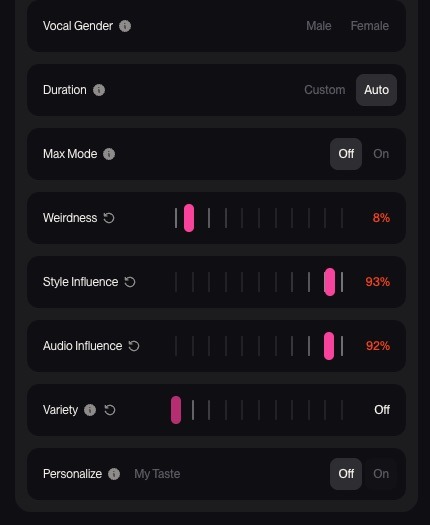
With Suno V6, these are the settings I use:
- Variations: 0
- Weirdness: 0
- Style Influence: above 90%, but below 100%
- Audio Influence: above 90%, but below 100%
I leave a little room in the Style and Audio Influence settings because, in my experience, pushing them to 100% sometimes seems to produce audio glitches. That’s my observation, rather than a technical explanation of what causes them.
Even with these settings, I expect a teeny-weeny difference between the original and the cover. The goal is to get a replacement that fits closely enough to work in the original recording.
Sometimes, I need to generate a few covers before I get a version with the wording, pronunciation, and delivery I want.
HOW TO REPLACE ONE WORD IN SUNO USING daw
Once I have a cover I’m happy with, I split both songs into stems:
- Song A: my original song.
- Song B: the cover containing the replacement word or phrase.
I then bring the stems into my digital audio workstation, or DAW. This is the software where I can arrange and edit the audio tracks. I mainly use GarageBand.
I line up the original and replacement recordings, then use the relevant part from Song B to replace the part I want to change in Song A.
For example, if I like the original vocal but one word is mispronounced, I’m looking for a better performance of that word in the cover. I can then use that small section while keeping the rest of my original performance.
The edit might need a slightly longer phrase around the word to sound natural. I listen to how it enters and leaves the surrounding vocal, rather than judging the corrected word on its own.
A Small Edit Can Still Take a Few Attempts
This method doesn’t mean every cover will give me a perfect replacement. I may still need several versions of Song B to find the best fit. But I now use this approach regularly because it gives me more control over which parts I keep.
I’m not a professional sound engineer. This is simply a workflow I’ve figured out using GarageBand.
Another tool I’ve used is BandLab. I previously subscribed to it and found it very useful for mastering.
If you’re wondering how to replace one word in Suno, this is the method that works for me: generate a close cover, find the correction you like, and use your DAW to bring that part into the original song.